

check my calendar for tomorrow, draft a reply to that Stripe email — one action at a time.
Before you start
Browsing is open to everyone; connecting an app requires an account.The catalog
Select Apps in the sidebar. You get a search box, a category filter, and each category laid out with one row per app. Connected apps gather in an Installed strip at the top.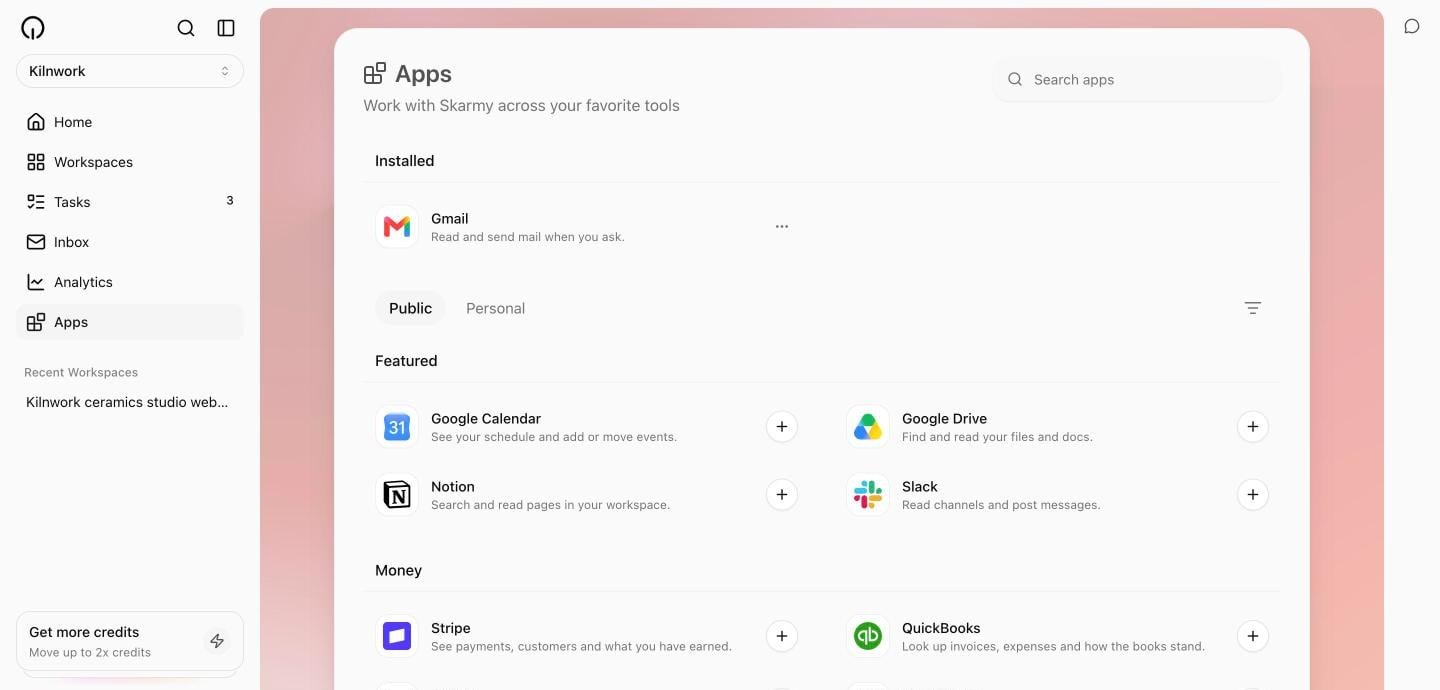
Connect an app
1
Pick the app
Select its row, or the + on the row. The app’s detail page shows what it is, what Skarmy can do in it, and a connect button.
2
Choose what Skarmy may do
Before connecting, the app’s skills — the individual actions Skarmy can take in it — are listed with checkboxes. Untick anything you would rather keep off.
3
Authorize it
Connecting sends you to the tool’s own sign-in to grant access, then back to Skarmy.Expected result: the app appears in the Installed strip.
Use a connected app
Just ask, in any chat with the coach:Manage a connected app
The row’s ⋯ menu offers Chat (start a conversation about this app), Manage (its detail page), and Uninstall. On the detail page you can flip individual skills on and off at any time — a switched-off skill simply refuses until you turn it back on.What Skarmy will never do in your apps
The short version: it reads freely when you ask, acts only when you ask, deletes never. The full rules are on App permissions.Verify
- The app shows in the Installed strip.
- Asking the coach something that needs the app produces a real answer from your data.
- A skill you switched off is refused when you ask for it.
Troubleshooting
Next
App permissions
Exactly what Skarmy may and may not do in a connected app.
Automations
Put connected apps to work on a schedule.