> ## Documentation Index
> Fetch the complete documentation index at: https://docs.skarmy.ai/llms.txt
> Use this file to discover all available pages before exploring further.
# Quickstart: from idea to a live site
> Take an idea from a single sentence to a working site live at your own skarmy.ai address, in about twenty minutes.
By the end of this guide you will have a working web product built from a sentence you wrote, and a public address you can send to someone.
* **Time:** about 20 minutes, most of it spent watching the build.
* **Cost:** a first build plus a publish fits inside the credits a new account starts with. See [How credits work](/credits/how-credits-work).
## Prerequisites
* A web browser. There is nothing to install.
* An email address, or a Google account.
You can start at [app.skarmy.ai](https://app.skarmy.ai/) without an account — Skarmy signs you in as a guest the moment you arrive, and you can talk to the coach right away. You create your account when you open the Builder, and everything you started as a guest carries over.
## The example used here
This guide builds one fictional company all the way through, so you can follow along with your own idea in the same shape.
> **Kilnwork** — an example, not a real business. A small ceramics studio that runs weekend workshops and wants a site where people can see the class schedule and register interest.
Substitute your own idea at every step. The instructions do not change.
## Build it
Go to [app.skarmy.ai](https://app.skarmy.ai/). You land on **Home**, with a sidebar on the left and the heading **What's your idea?** in the middle.
In the box below the heading, type your idea in plain language. One or two sentences is plenty — the coach will ask about anything it needs.
For the example:
```text theme={null}
A site for Kilnwork, a small ceramics studio. We run weekend
pottery workshops and want people to see the schedule and
register interest.
```
Press Enter or select the send button.
**Expected result:** the page becomes a conversation, your message appears, and the coach replies.
The coach reacts to your specific idea and asks a question or two — usually about a real tension in the idea rather than a checklist.
Answer in your own words. Two or three exchanges is normal. If you would rather stop talking and start building, say so; the coach will hand off immediately.
**Expected result:** the coach summarises what it is handing over, and an **Open Builder** button appears in the conversation.
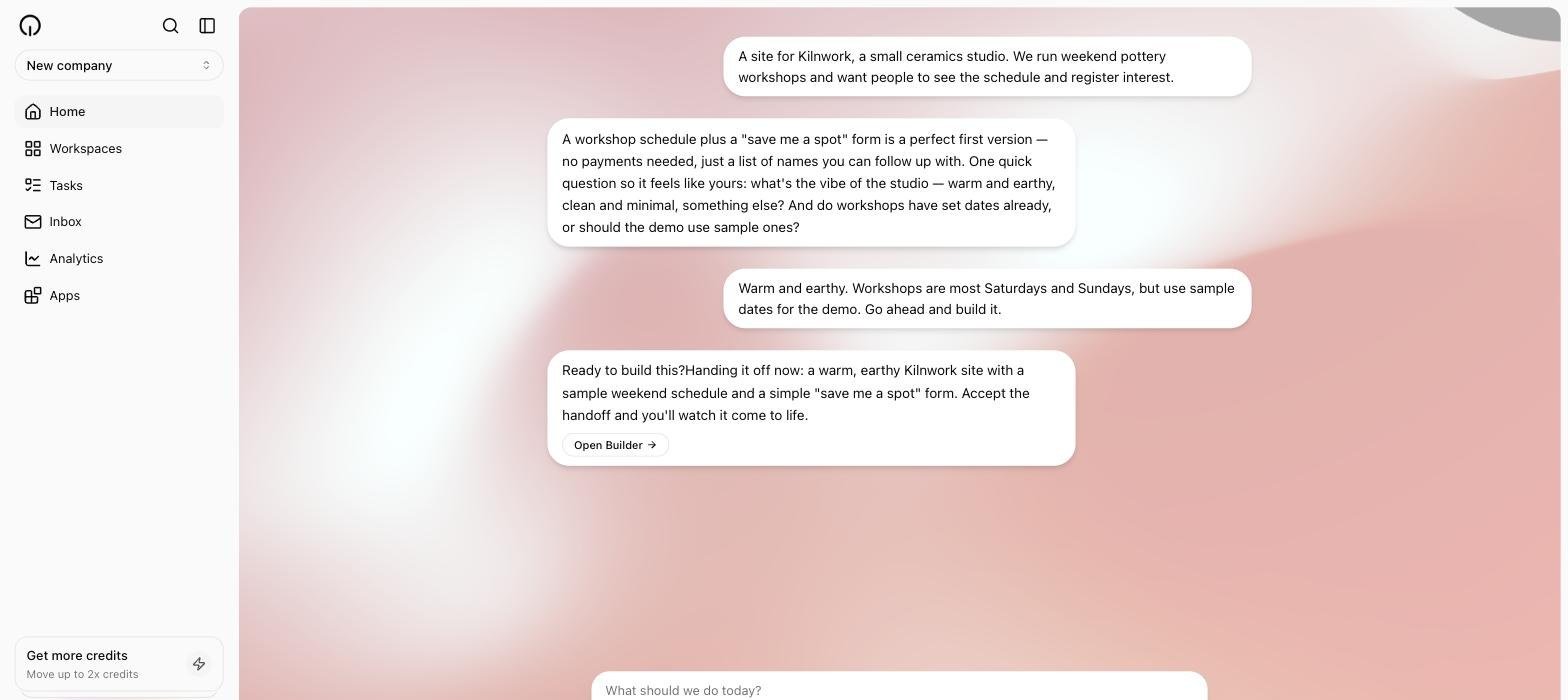 The coach only sharpens ideas and works your company. It cannot see your plan, credits, or account settings — for those, go to **Settings**.
Select **Open Builder**.
If you have been working as a guest, this is where Skarmy asks you to sign up: **Create an account to use the builder**. Fill in your name, email, and password, or select **Continue with Google**. Your projects come with you — everything you started as a guest is linked to your new account.
**Expected result:** the workspace opens — the conversation on the left, a preview pane on the right showing `preview starting…` while the Builder sets up.
While your company is unnamed, Skarmy asks what to call it — a card above the composer reading **What do you want to call your company?** Type a name into the **Company name…** field and select **Save**. For the example, `Kilnwork`.
You can also name it at any moment by telling the coach: `Call my company Kilnwork`.
**Expected result:** the name updates in the sidebar immediately.
The Builder scaffolds the app, starts it running, and writes real pages and copy. Progress appears in the conversation as it goes — `thinking…`, `implementing…`, and so on.
When the app is up, the preview switches from the starting message to your actual site, and reloads itself each time the Builder changes something.
If the Builder hits a genuinely ambiguous choice, it asks you one focused question with two or three options. Pick one and select **Send answer**.
**Expected result:** a working site in the preview, and a short summary in the conversation describing what was built.
The coach only sharpens ideas and works your company. It cannot see your plan, credits, or account settings — for those, go to **Settings**.
Select **Open Builder**.
If you have been working as a guest, this is where Skarmy asks you to sign up: **Create an account to use the builder**. Fill in your name, email, and password, or select **Continue with Google**. Your projects come with you — everything you started as a guest is linked to your new account.
**Expected result:** the workspace opens — the conversation on the left, a preview pane on the right showing `preview starting…` while the Builder sets up.
While your company is unnamed, Skarmy asks what to call it — a card above the composer reading **What do you want to call your company?** Type a name into the **Company name…** field and select **Save**. For the example, `Kilnwork`.
You can also name it at any moment by telling the coach: `Call my company Kilnwork`.
**Expected result:** the name updates in the sidebar immediately.
The Builder scaffolds the app, starts it running, and writes real pages and copy. Progress appears in the conversation as it goes — `thinking…`, `implementing…`, and so on.
When the app is up, the preview switches from the starting message to your actual site, and reloads itself each time the Builder changes something.
If the Builder hits a genuinely ambiguous choice, it asks you one focused question with two or three options. Pick one and select **Send answer**.
**Expected result:** a working site in the preview, and a short summary in the conversation describing what was built.
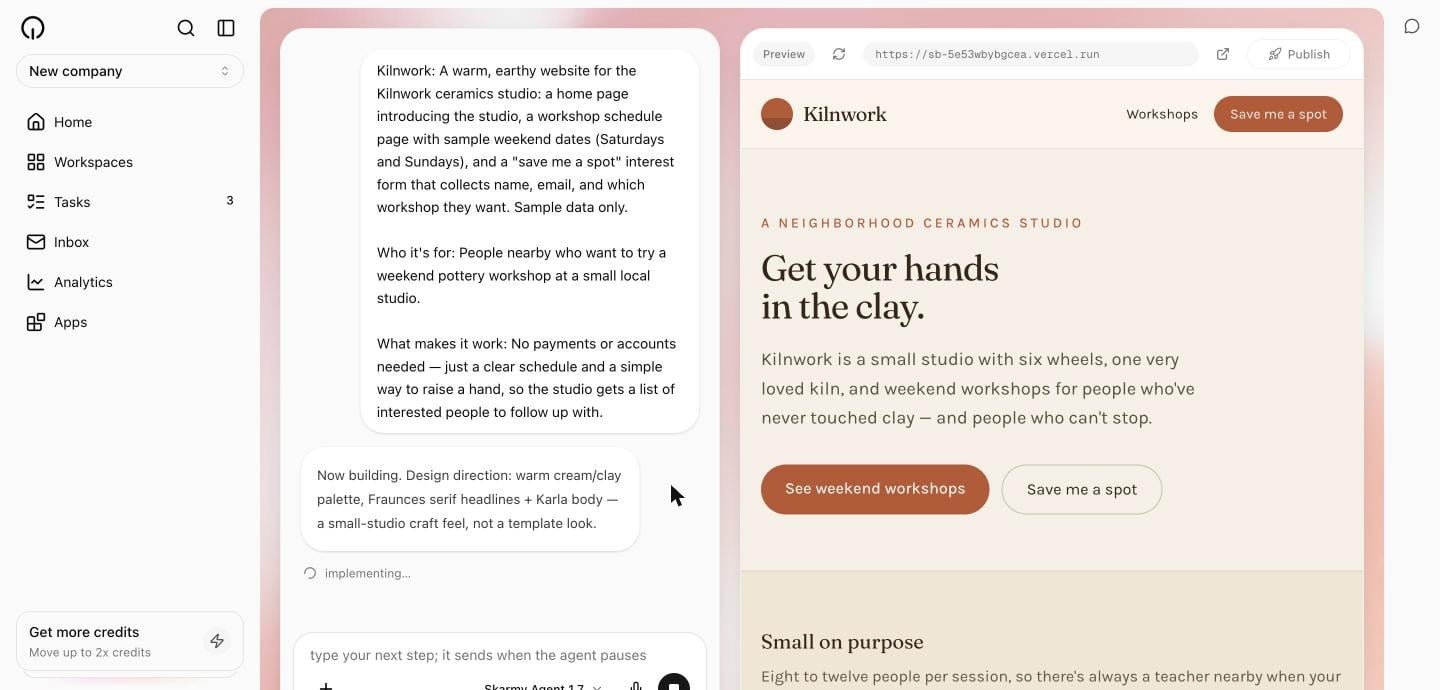 A first build takes a few minutes. The preview pane stays honest about its state — see [Read the live preview](/build/live-preview) for what each message means.
Type a change into the conversation, exactly as you would ask a colleague. For the example:
```text theme={null}
Make the workshop schedule the first thing on the homepage,
and warm the colours up a bit.
```
**Expected result:** the Builder makes the change and the preview updates. Small edits are quick.
Select **Publish** at the top of the workspace. Because this is your first publish, a dialog appears titled **Name your site**.
Type the name you want. Your address is that name plus `.skarmy.ai` — for the example, `kilnwork` gives `kilnwork.skarmy.ai`. The hint under the field tells you whether the name is available.
Next, Skarmy shows **Review before publishing** — the exact version going out, that the audience is the public internet, and what it costs. Select **Approve and publish**. Nothing deploys without this approval.
**Expected result:** the button reads **Deploying…**, then a **Live at yourname.skarmy.ai** link appears. Open it — that is your site, on the public internet.
You pick your address once and it stays with the workspace. Choose a name you are happy to share.
## Verify it worked
Check each of these before you call it done:
* [ ] The sidebar shows your company name, not **Untitled Company**.
* [ ] The preview pane shows your site, not a starting or asleep message.
* [ ] The conversation contains the Builder's summary of what it built.
* [ ] The change you asked for in step 6 is visible in the preview.
* [ ] A **Live at …** link appears beside the **Publish** button.
* [ ] Opening that link in a new tab loads your site.
* [ ] The site loads on your phone as well as your laptop.
All seven checked? You have built and shipped a working product. Send the link to someone.
## If something went wrong
| What you see | What to do |
| ------------------------------------------------- | ------------------------------------------------------------------------------------------- |
| `Nothing to publish yet. Finish a build first` | The Builder has not completed a milestone. Wait for its summary, then publish. |
| `That name is already taken. Try another` | Someone claimed that address. Pick a different name. |
| The name field rejects your name | Use 3–63 lowercase letters, numbers, or hyphens — no capitals, spaces, or symbols. |
| `You're out of credits. Top up on the Usage page` | Add credits on the **Usage** page. See [Billing and top-ups](/credits/billing-and-top-ups). |
| The preview says `preview asleep` | Select **Wake preview**, or just send your next message. |
| Progress looks stuck | Reload the page. See [Troubleshooting](/account/troubleshooting). |
## Next steps
Your first build is done, and Skarmy is only getting started. Tomorrow there will be a fresh slate of suggested tasks on your **Tasks** page.
How to ask for changes that land the way you meant them.
Skarmy suggests what to do next, every day.
What building costs and when your allowance resets.
A first build takes a few minutes. The preview pane stays honest about its state — see [Read the live preview](/build/live-preview) for what each message means.
Type a change into the conversation, exactly as you would ask a colleague. For the example:
```text theme={null}
Make the workshop schedule the first thing on the homepage,
and warm the colours up a bit.
```
**Expected result:** the Builder makes the change and the preview updates. Small edits are quick.
Select **Publish** at the top of the workspace. Because this is your first publish, a dialog appears titled **Name your site**.
Type the name you want. Your address is that name plus `.skarmy.ai` — for the example, `kilnwork` gives `kilnwork.skarmy.ai`. The hint under the field tells you whether the name is available.
Next, Skarmy shows **Review before publishing** — the exact version going out, that the audience is the public internet, and what it costs. Select **Approve and publish**. Nothing deploys without this approval.
**Expected result:** the button reads **Deploying…**, then a **Live at yourname.skarmy.ai** link appears. Open it — that is your site, on the public internet.
You pick your address once and it stays with the workspace. Choose a name you are happy to share.
## Verify it worked
Check each of these before you call it done:
* [ ] The sidebar shows your company name, not **Untitled Company**.
* [ ] The preview pane shows your site, not a starting or asleep message.
* [ ] The conversation contains the Builder's summary of what it built.
* [ ] The change you asked for in step 6 is visible in the preview.
* [ ] A **Live at …** link appears beside the **Publish** button.
* [ ] Opening that link in a new tab loads your site.
* [ ] The site loads on your phone as well as your laptop.
All seven checked? You have built and shipped a working product. Send the link to someone.
## If something went wrong
| What you see | What to do |
| ------------------------------------------------- | ------------------------------------------------------------------------------------------- |
| `Nothing to publish yet. Finish a build first` | The Builder has not completed a milestone. Wait for its summary, then publish. |
| `That name is already taken. Try another` | Someone claimed that address. Pick a different name. |
| The name field rejects your name | Use 3–63 lowercase letters, numbers, or hyphens — no capitals, spaces, or symbols. |
| `You're out of credits. Top up on the Usage page` | Add credits on the **Usage** page. See [Billing and top-ups](/credits/billing-and-top-ups). |
| The preview says `preview asleep` | Select **Wake preview**, or just send your next message. |
| Progress looks stuck | Reload the page. See [Troubleshooting](/account/troubleshooting). |
## Next steps
Your first build is done, and Skarmy is only getting started. Tomorrow there will be a fresh slate of suggested tasks on your **Tasks** page.
How to ask for changes that land the way you meant them.
Skarmy suggests what to do next, every day.
What building costs and when your allowance resets.